 ☰
☰How to get data from API with Power BI?
Step 1: Open Power Query Editor
In Power BI Desktop, go to the Home tab and click Transform Data to open the Power Query Editor.

Step 2: Set Up the API Call
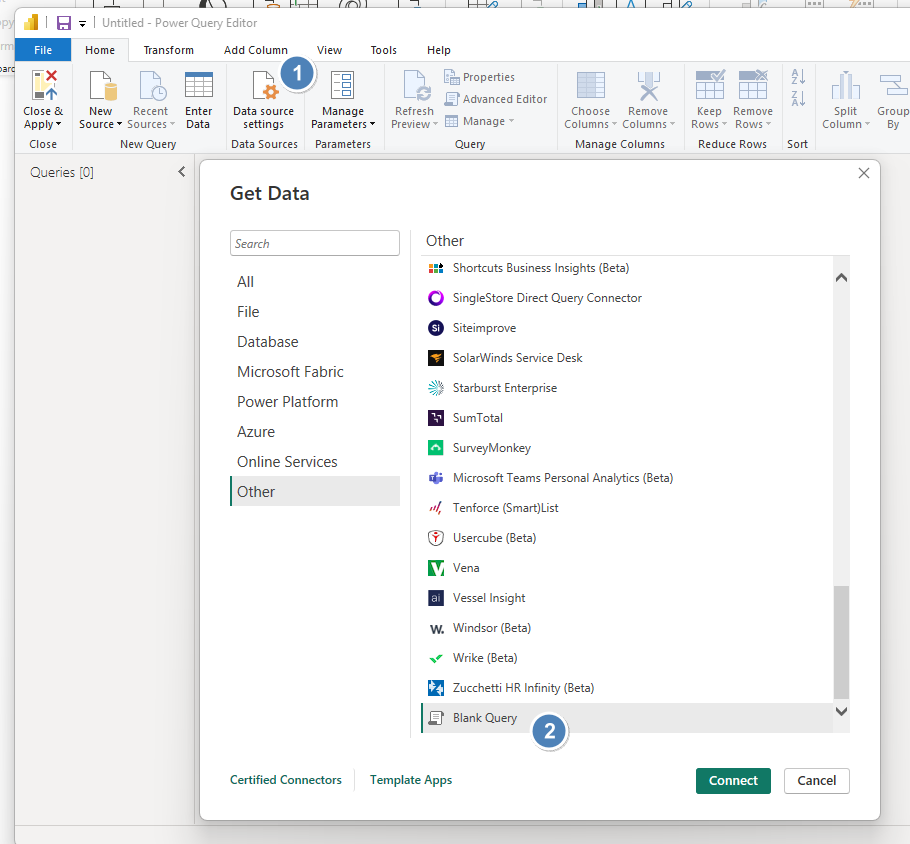
In the Power Query Editor, go to Home > New Source > Blank Query Then, open the Advanced Editor to write code for calling an API.
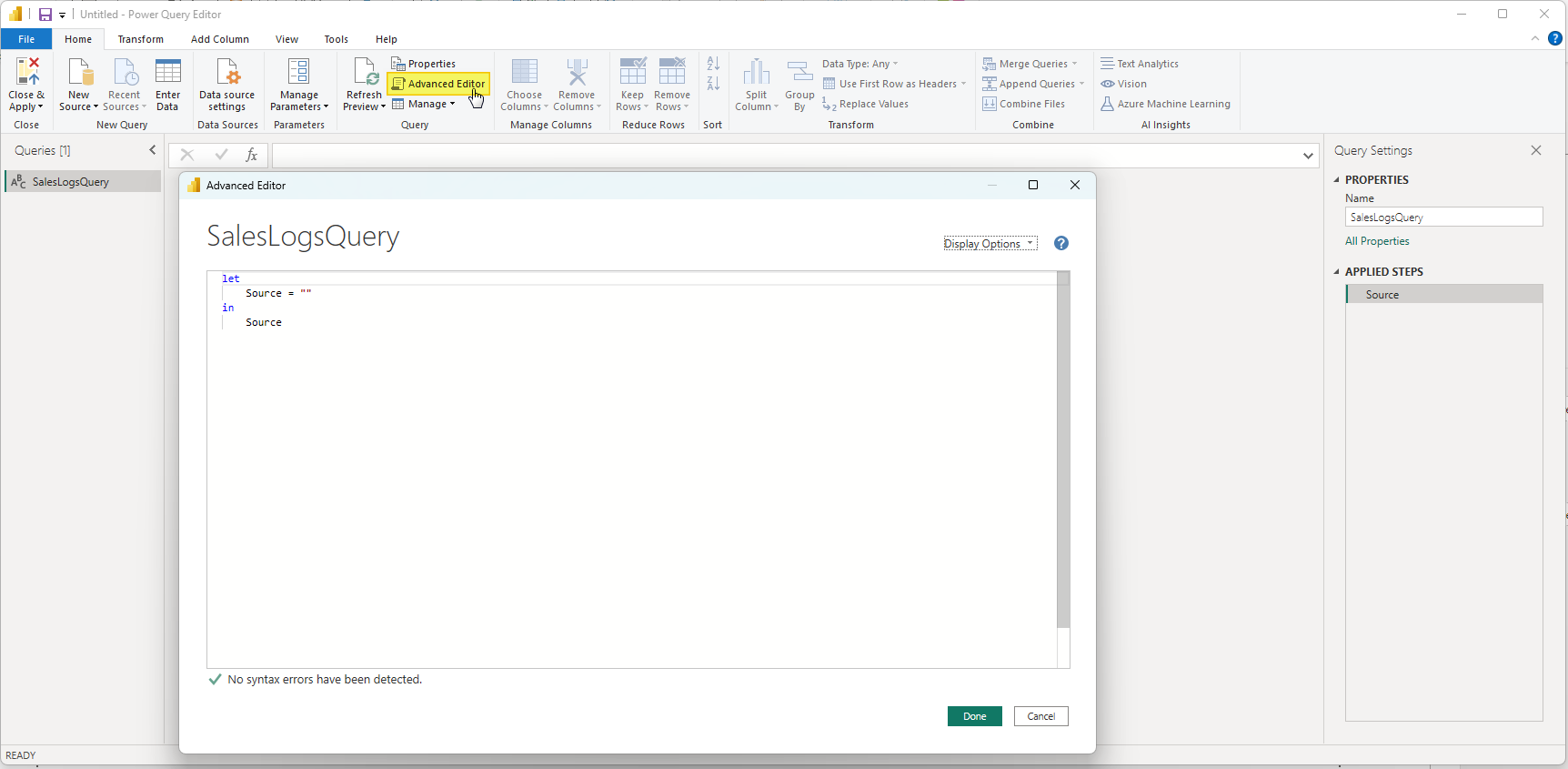
Step 3: Build the Power BI Query
Go to the formula bar (enable it from the View tab if not visible) and write your POST request.
Use the Web.Contents function to make the API call.
let
// Get Token
clientSecret = "<!-- Client Secret -->",
responseGetToken = Web.Contents("https://api-service.saleslogs.com/",
[
RelativePath = "auth/token",
Content = Text.ToBinary(""),
Headers = [#"Content-Type" = "application/x-www-form-urlencoded"],
Query=[
clientSecret=clientSecret
]
]),
jsonGetToken = Json.Document(responseGetToken),
access_token = jsonGetToken[access_token],
// Get Data
today = DateTime.LocalNow(),
startDate = Date.ToText(Date.AddMonths(Date.From(today), -5), "yyyy-MM-01"),
endtDate = DateTime.ToText(Date.EndOfMonth(today), "yyyy-MM-dd"),
responseGetData = Web.Contents("https://api-service.saleslogs.com/",
[
RelativePath = "export/GetData",
Headers=[Authorization="Bearer " & access_token],
Query=[
Username="<!-- UserName -->",
Period="Delivered_CUSTOM",
ContentType="CSV",
StartDate=startDate,
EndDate=endtDate
]
]),
Source = Csv.Document(responseGetData,[Delimiter=",", Columns=400, Encoding=1252, QuoteStyle=QuoteStyle.None])
in
Source
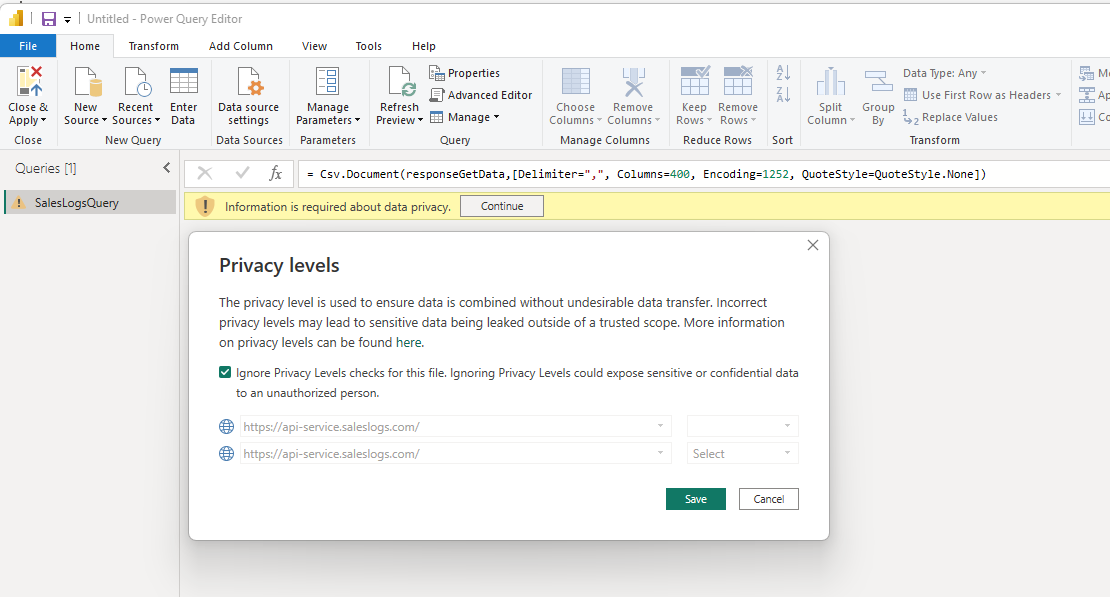
Click Continue and Select Ignore Privacy Levels
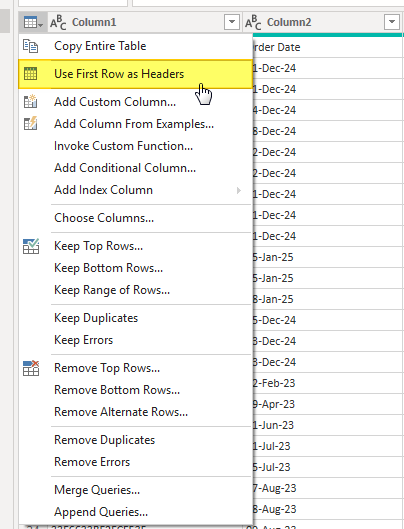
Step 4: Set the first row as headers and remove unnecessary columns.
Step 5: Close & Apply Power Query Editor
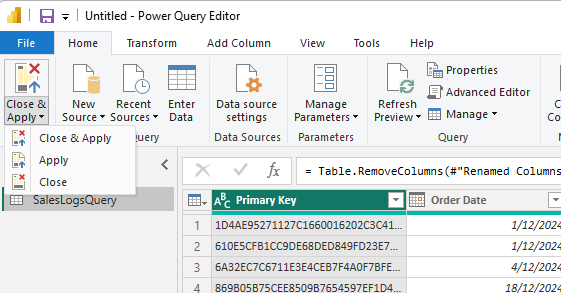
Step 6: Schedule Data Refresh
Configure a refresh schedule in Power BI Service to automatically fetch updated data
Get Delivered Deals (12-Month Data)
Purpose: Fetch all delivered deals for the past 12 months based on the current date.
Query Parameters:
Username=<YourUsername>
Period=Delivered_CUSTOM
StartDate=<Start Date>
EndDate=<End Date>
ContentType=CSV
Power BI Code Example:
let
// Get Token
clientSecret = "<!-- Client Secret -->",
responseGetToken = Web.Contents("https://api-service.saleslogs.com/",
[
RelativePath = "auth/token",
Content = Text.ToBinary(""),
Headers = [#"Content-Type" = "application/x-www-form-urlencoded"],
Query=[
clientSecret=clientSecret
]
]),
jsonGetToken = Json.Document(responseGetToken),
access_token = jsonGetToken[access_token],
// Get Data
today = DateTime.LocalNow(),
startDate = Date.ToText(Date.AddMonths(Date.From(today), -12), "yyyy-MM-01"),
endtDate = DateTime.ToText(Date.EndOfMonth(today), "yyyy-MM-dd"),
responseGetData = Web.Contents("https://api-service.saleslogs.com/",
[
RelativePath = "export/GetData",
Headers=[Authorization="Bearer " & access_token],
Query=[
Username="<!-- UserName -->",
Period="Delivered_CUSTOM",
ContentType="CSV",
StartDate=startDate,
EndDate=endtDate
]
]),
Source = Csv.Document(responseGetData,[Delimiter=",", Columns=400, Encoding=1252, QuoteStyle=QuoteStyle.None])
in
Source
Active Deals (Undelivered)
Purpose: Fetch all currently active, undelivered deals.
Query Parameters:
Username=<YourUsername>
Period=Active
ContentType=CSV
Power BI Code Example:
let
// Get Token
clientSecret = "<!-- Client Secret -->",
responseGetToken = Web.Contents("https://api-service.saleslogs.com/",
[
RelativePath = "auth/token",
Content = Text.ToBinary(""),
Headers = [#"Content-Type" = "application/x-www-form-urlencoded"],
Query=[
clientSecret=clientSecret
]
]),
jsonGetToken = Json.Document(responseGetToken),
access_token = jsonGetToken[access_token],
// Get Data
responseGetData = Web.Contents("https://api-service.saleslogs.com/",
[
RelativePath = "export/GetData",
Headers = [Authorization = "Bearer " & access_token],
Query = [
Username = "<YourUsername>",
Period = "Active",
ContentType = "CSV"
]
]),
Source = Csv.Document(responseGetData, [Delimiter=",", Columns=400, Encoding=1252, QuoteStyle=QuoteStyle.None])
in
Source
Cancelled Deals (12-Month Data)
Purpose: Fetch all cancelled deals for a specific date range.
Query Parameters:
Username=<YourUsername>
Period=Cancelled_CUSTOM
StartDate=<Start Date>
EndDate=<End Date>
ContentType=CSV
Power BI Code Example:
let
// Get Token
clientSecret = "<!-- Client Secret -->",
responseGetToken = Web.Contents("https://api-service.saleslogs.com/",
[
RelativePath = "auth/token",
Content = Text.ToBinary(""),
Headers = [#"Content-Type" = "application/x-www-form-urlencoded"],
Query=[
clientSecret=clientSecret
]
]),
jsonGetToken = Json.Document(responseGetToken),
access_token = jsonGetToken[access_token],
// Get Data
today = DateTime.LocalNow(),
startDate = Date.ToText(Date.AddMonths(Date.From(today), -12), "yyyy-MM-01"),
endtDate = DateTime.ToText(Date.EndOfMonth(today), "yyyy-MM-dd"),
responseGetData = Web.Contents("https://api-service.saleslogs.com/",
[
RelativePath = "export/GetData",
Headers = [Authorization = "Bearer " & access_token],
Query = [
Username = "<YourUsername>",
Period = "Cancelled_CUSTOM",
ContentType = "CSV",
StartDate = startDate,
EndDate = endDate
]
]),
Source = Csv.Document(responseGetData, [Delimiter=",", Columns=400, Encoding=1252, QuoteStyle=QuoteStyle.None])
in
Source
Daily Delta Changes (Last 24 Hours)
Use this query once your full dataset is loaded. It fetches only the changes made in the last 24 hours.
Query Parameters:
Period=Changed_24Hrs
Power BI Code Example:
let
// Get Token
clientSecret = "<!-- Client Secret -->",
responseGetToken = Web.Contents("https://api-service.saleslogs.com/",
[
RelativePath = "auth/token",
Content = Text.ToBinary(""),
Headers = [#"Content-Type" = "application/x-www-form-urlencoded"],
Query=[
clientSecret=clientSecret
]
]),
jsonGetToken = Json.Document(responseGetToken),
access_token = jsonGetToken[access_token],
// Get Data
responseDeltaData = Web.Contents("https://api-service.saleslogs.com/",
[
RelativePath = "export/GetData",
Headers = [Authorization = "Bearer " & access_token],
Query = [
Username = "<YourUsername>",
Period = "Changed_24Hrs",
ContentType = "CSV"
]
]),
Source = Csv.Document(responseDeltaData, [Delimiter=",", Columns=400, Encoding=1252, QuoteStyle=QuoteStyle.None])
in
Source
Available Periods
Changed_24Hrs – Delta changes in last 24 hours
Changed_48Hrs – Delta changes in last 48 hours
Changed_7Days – Delta changes in last 7 days
Sold_7Days – Deals created in last 7 days
Active – All active undelivered deals
Delivered_MTD – Delivered Month-to-date deals
Delivered_CUSTOM – Delivered deals for custom date range
Cancelled_CUSTOM – Cancelled deals for custom date range
Additional Tips
Error Handling: Use try...otherwise to manage API errors gracefully
Automating Token Retrieval: If using APIs with short-lived tokens, create a pre-step to fetch a new token programmatically.
Privacy Settings: Adjust privacy level settings to "Ignore Privacy Levels" if required.
Transform Data: After retrieval, use Power Query to clean and format your data (e.g., set headers, remove unwanted columns).
Key Notes
RelativePath: Specifies the endpoint relative to the base URL.
Query: Sends parameters such as date ranges to the API.
Headers: Includes authentication and other custom headers in the request.